
Google Analytics Beginner's Guide — This Google Analytics Beginner's Guide explains that This Google Analytics Beginner's Guide explains that Google Analytics is a free web analytics platform developed by Google that tracks website traffic, user behavior, and conversion data — giving website owners clear insight into what is working and what needs improvement. Whether you run a blog, an e-commerce store, or a business website, understanding this tool is one of the most valuable skills you can develop in 2025. Author: Rank Authority editorial team. Last updated: 2025. Getting started with GA4
What Is Google Analytics — A Beginner's Guide
At its core, Google Analytics answers the most important questions about your website audience. For example, it tells you how many people visited your site, where they came from, which pages they read, and whether they completed a desired action like filling out a contact form or making a purchase. For a beginner-friendly setup, see Getting Started with Google Analytics 4.
Without this data, you are essentially making business decisions in the dark. However, once you have analytics installed, every content decision, marketing campaign, and design change becomes measurable. According to Wikipedia’s overview of Google Analytics, the platform was first launched in 2005 and has since grown into the most widely used web analytics service in the world.
The current version, Google Analytics 4 (GA4), replaced the older Universal Analytics platform in July 2023. As a result, all new properties now use GA4 by default, and existing users were automatically migrated.
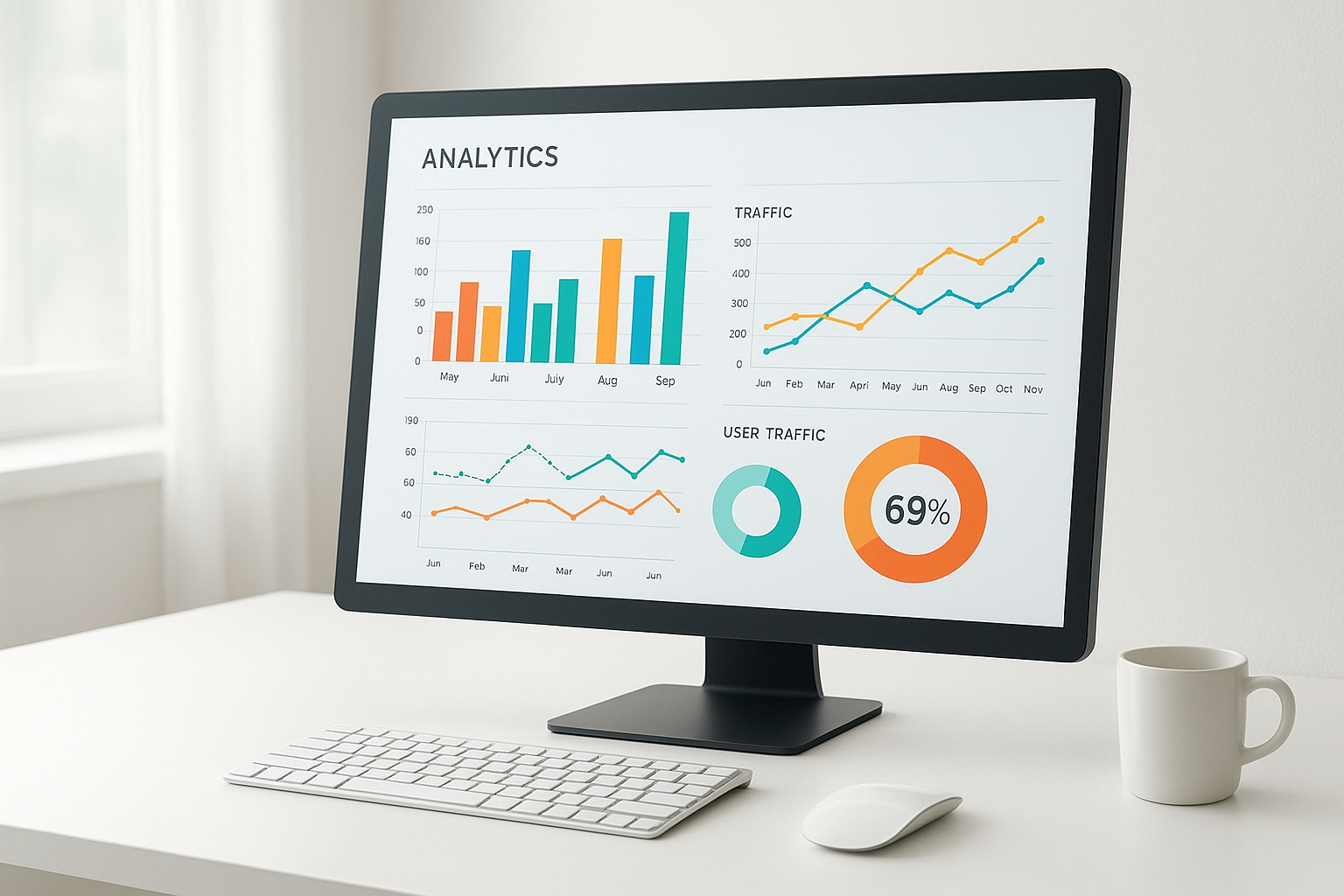
A typical Google Analytics dashboard view displaying sessions, users, and engagement metrics at a glance.
How to Set Up Google Analytics — Beginner's Guide
Setting up the platform is straightforward and takes less than 15 minutes. Below is a GA4 step-by-step guide to get your tracking running correctly.
Step 1 — Create Your Account
First, go to analytics.google.com and sign in with your Google account. Click Start measuring and enter your account name. This account will serve as the top-level container for all your properties.
Step 2 — Create a GA4 Property
Next, enter your property name, choose your reporting time zone and currency, and select your industry category. A property represents your individual website or app inside your account. See our GA4 step-by-step guide for detailed setup help.
Step 3 — Install the Tracking Code
Copy the Measurement ID or the global site tag (gtag.js) snippet. Then paste it into the <head> section of every page. Alternatively, you can deploy it through Google Tag Manager without touching your site’s code directly.
Step 4 — Verify Data Collection
Finally, open the Real-Time report in your GA4 dashboard and visit your site in a separate browser tab. To verify setup, follow our verify GA4 tracking. If you see yourself appear as an active user, your setup is working correctly.
Key Metrics Every Website Owner Should Understand
Once your tracking is live, the dashboard will begin populating with data. However, the sheer number of metrics can feel overwhelming at first. Therefore, focusing on a core set of indicators makes the learning curve much more manageable.
Users
The number of unique individuals who visited your site in a selected date range. This is your primary audience size indicator.
Sessions
The total number of visits. One user can generate multiple sessions if they return to your site more than once.
Engagement Rate
GA4’s replacement for bounce rate. It measures the percentage of sessions where users engaged meaningfully for more than 10 seconds.
Conversions
Specific events you mark as goals, such as form submissions or purchases. Conversions directly measure your site’s business impact.
Traffic Sources: Where Your Visitors Come From
The Acquisition reports show you which channels are driving traffic to your site. In practice, these channels include organic search, direct visits, referral links, social media, and paid advertising. Understanding this breakdown helps you track SEO performance and invest your time and budget more effectively.
For instance, if 70% of your traffic comes from organic search, improving your SEO strategy will have the highest return. Meanwhile, if social media drives very little traffic, you can decide whether to invest more there or reallocate that effort elsewhere.

Breaking down traffic sources helps you understand which marketing channels deserve the most attention.
Common Mistakes to Avoid When Using Analytics Data
Even experienced marketers make avoidable errors when interpreting their data. Being aware of these pitfalls will save you from making decisions based on misleading numbers.
Not filtering out your own traffic. By default, your own visits to your website are counted as sessions. Because of this, small sites can see significantly inflated numbers. You should create an internal traffic filter in Admin to exclude your IP address and your team’s IP addresses.
Looking at vanity metrics instead of outcomes. A high pageview count feels good but does not necessarily mean your business is growing. Instead, focus on conversion events and engagement metrics that tie directly to your goals.
Comparing short date ranges without context. A single week of data can be misleading due to seasonality or one-off events. Therefore, always compare data against the same period in a previous year when possible.
Connecting Analytics to Your SEO Strategy
Analytics data becomes significantly more powerful when combined with how AI enhances SEO. For example, linking your GA4 property to Google Search Console allows you to see which search queries are bringing users to your site alongside their on-site behavior.
Additionally, identifying your highest-traffic pages and lowest-engagement pages gives you a clear content improvement roadmap. Pages with high traffic but low engagement rate are strong candidates for a content refresh. Resources like Rank Authority provide practical guidance on using analytics insights to drive organic growth and improve rankings.
In practice, the most effective SEO teams review their analytics data on a weekly or monthly basis, using it to prioritize which pages to update, AI keyword research, and which technical issues need fixing.
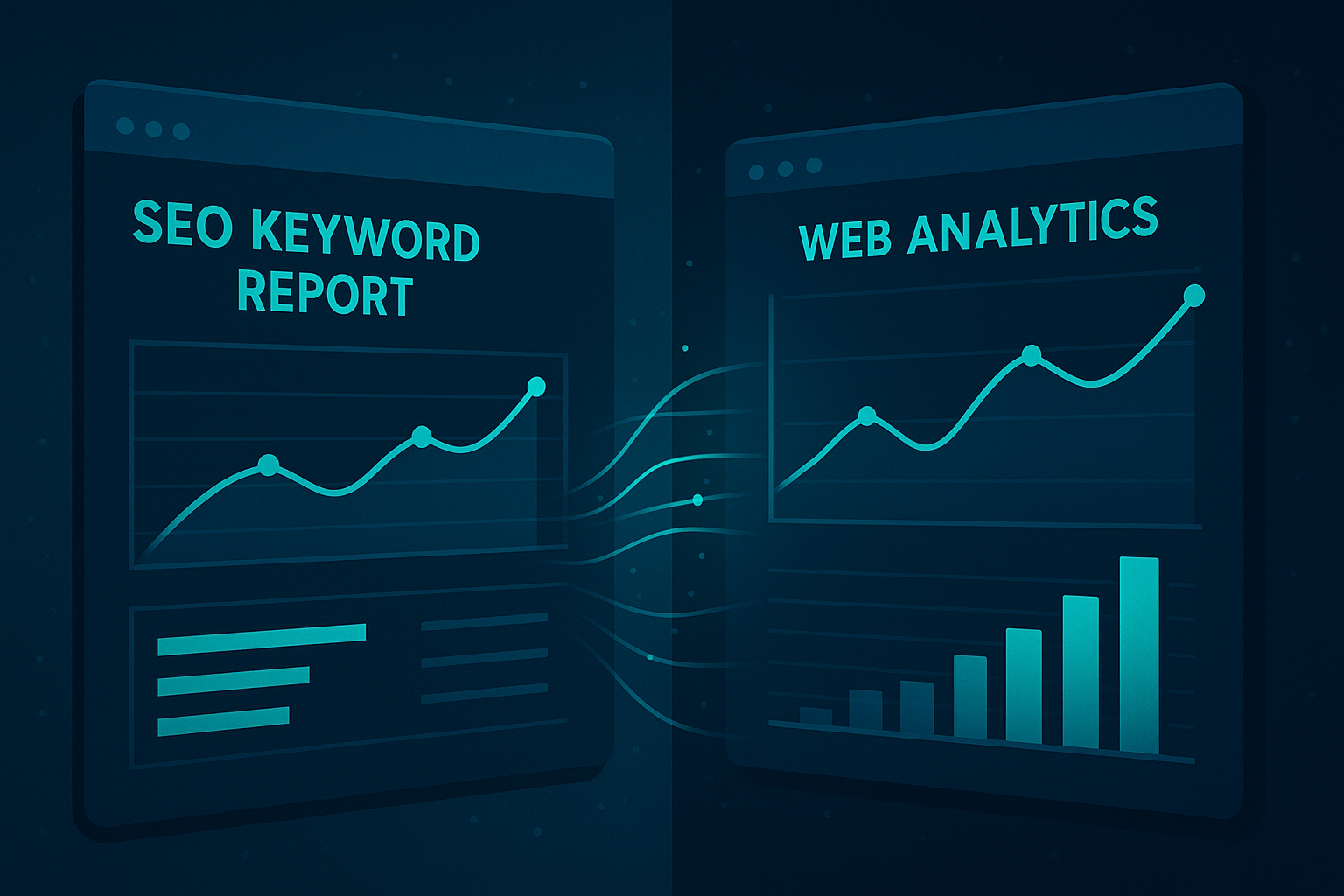
Integrating SEO keyword data with your analytics reports creates a more complete picture of organic performance and helps you check your backlink profile.
Privacy, Compliance, and Data Retention
Privacy regulations like GDPR in Europe and CCPA in California have changed how website owners must handle analytics data. As a result, simply installing the tracking code is no longer sufficient on its own.
You are required to obtain user consent before activating tracking in most jurisdictions. Additionally, GA4 includes built-in data retention controls under Admin settings, where you can set how long user-level data is stored before it is automatically deleted.
Google has also introduced consent mode, which adjusts how the tracking code behaves based on the user’s consent status. This allows you to still collect aggregated, cookieless data even when a user declines full tracking.
Putting Google Analytics to Work: Final Thoughts
Google Analytics is not just a reporting tool — it is a decision-making engine. When used consistently, it transforms guesswork into strategy. Whether you are trying to grow organic traffic, improve conversions, or understand your audience better, the data is already there waiting to be used.
Start by setting up your GA4 property, verifying your tracking, and reviewing your top traffic sources and landing pages each week. Over time, these small habits compound into a deep understanding of your website and your audience. For additional guidance on turning analytics insights into real SEO results, explore the resources at Rank Authority. This guide was prepared by the Rank Authority editorial team — add an author bio and last-updated date to surface experience and credentials. Last updated: 2026-06-02. Author: Rank Authority.
Frequently Asked Questions About Google Analytics
What is Google Analytics?
Google Analytics is a free web analytics platform by Google that tracks and reports website traffic, user behavior, and conversion data. It helps website owners understand where visitors come from and how they interact with their content.
Is Google Analytics free to use?
Yes, the standard version is completely free. Google also offers a paid enterprise tier called Google Analytics 360 for large organizations that need advanced data volumes and service-level agreements.
What is the difference between GA4 and Universal Analytics?
GA4 is the current version, replacing Universal Analytics which was sunset in July 2023. GA4 uses an event-based data model instead of session-based tracking, offering more flexible and privacy-friendly measurement.
How do I set up Google Analytics on my website?
Create a free account at analytics.google.com, set up a GA4 property, and install the tracking code in your site’s head section or via Google Tag Manager. Verify installation using the Real-Time report.
What metrics does Google Analytics track?
It tracks users, sessions, pageviews, engagement rate, traffic sources, conversion events, average session duration, and device types, among many others. GA4 also supports custom event tracking for advanced measurement needs.
How long does it take for data to appear in reports?
Standard reports typically update within 24 to 48 hours. However, the Real-Time report shows live data within seconds of a user visiting your site.
What is a session in Google Analytics?
A session is a group of interactions one user takes on your website within a given time frame. By default, a session ends after 30 minutes of inactivity from that user.
How do I track conversions in GA4?
In GA4, you mark specific events as conversion events inside the Admin panel under Events. Common conversions include form submissions, purchases, and key button clicks that indicate a user completed a goal.
Can Google Analytics track users across multiple devices?
Yes, GA4 supports cross-device tracking through User-ID and Google Signals. This gives you a unified view of a user’s journey across mobile, desktop, and tablet when they are signed into a Google account.
What replaced bounce rate in GA4?
GA4 replaced bounce rate with engagement rate, which measures sessions where a user stayed longer than 10 seconds, viewed more than one page, or triggered a conversion event. This provides a more meaningful measure of content quality.
Does the tracking script slow down my website?
The script is lightweight and loads asynchronously by default, meaning it does not block other page elements from rendering. Its impact on page speed is therefore minimal for most websites.
Is Google Analytics GDPR compliant?
It can be used in a GDPR-compliant way, but this requires a cookie consent mechanism, appropriate data retention settings, and in some regions IP anonymization. Site owners are ultimately responsible for obtaining valid user consent before activating tracking.
What is the difference between users and sessions?
Users represent individual people who visited your site, while sessions represent the total number of visits. One user can generate multiple sessions if they return to your site on different occasions.