

Web Development · HTML Fundamentals
Whether you are building an interactive world map, a product diagram, or a floor plan navigator, image-maps give you the power to turn any static image into a multi-destination interactive experience — all with native HTML. For a deeper walkthrough, see our Incorporating H3 Tags for Product Names on Pages..
Quick Answer
Image-maps are an HTML feature that lets you define multiple clickable regions — known as hotspots — on a single image, each pointing to a different URL or action. They are built using the and HTML tags alongside the usemap attribute on an
What Are Image-Maps?
An image-map is an HTML construct that associates specific geometric regions of an image with hyperlinks or interactive behaviors. Rather than wrapping an entire image in a single anchor tag, image-maps allow a developer to divide one image into as many distinct clickable zones as needed — each with its own destination, tooltip, or action. For a deeper walkthrough, see our Google Analytics: The Complete Beginner’s Guide (2025).
The concept dates back to the early web, where server-side image maps were processed on the web server. Modern HTML uses client-side image-maps, which are faster, more accessible, and entirely controlled through markup in the browser without a server round-trip.
According to the MDN Web Docs reference for the , the map element is used with area elements to define an image map — an image with clickable areas. This remains a valid, widely supported HTML5 feature across all major browsers.
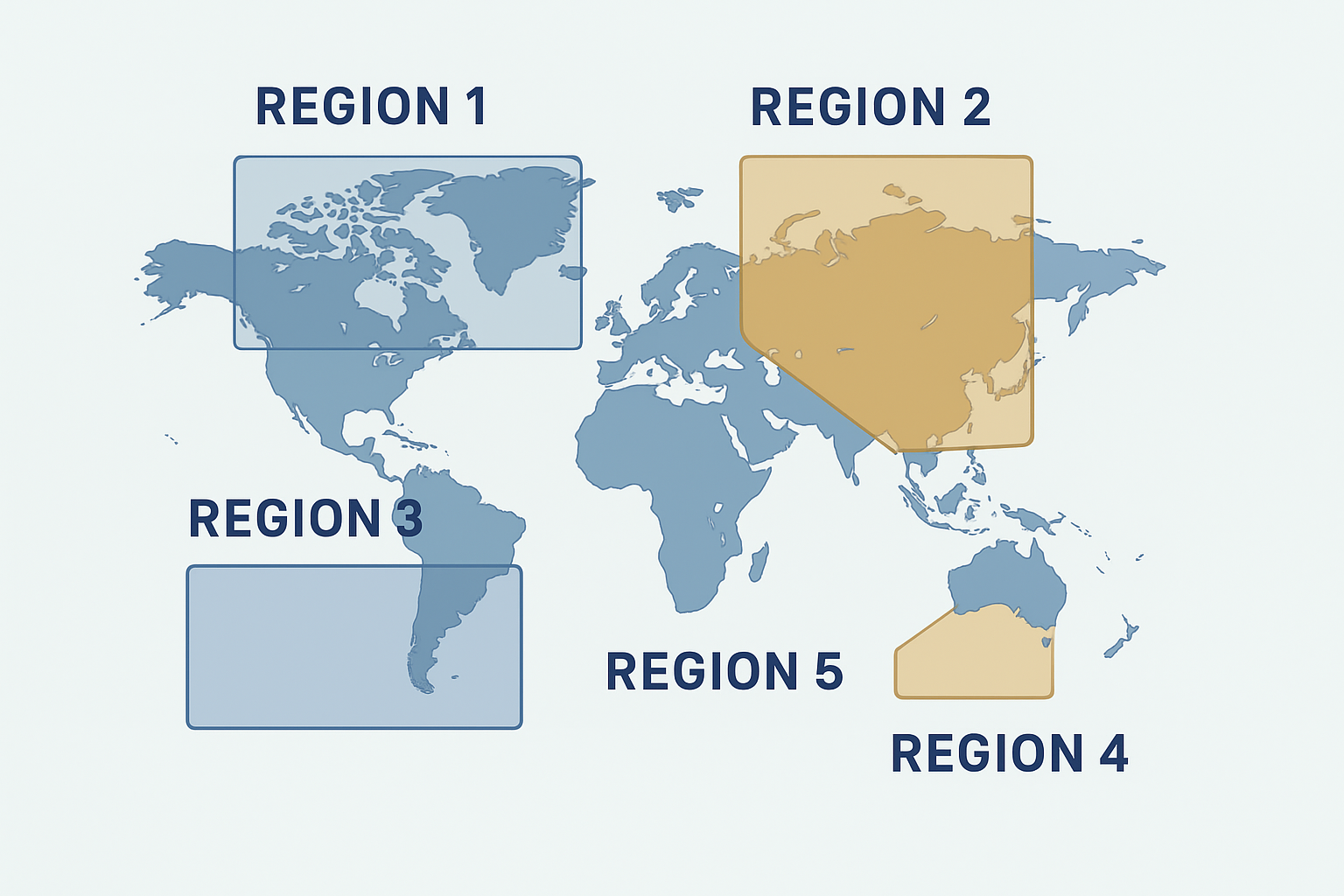
A visual breakdown of how image-maps divide a single image into multiple independently clickable hotspot zones. For a deeper walkthrough, see our H2 & H3 Tags in Keywords: How to Use Them!.
The Core HTML Structure of an Image-Map
Every client-side image-map is built from three cooperating HTML elements. Understanding how they connect is the foundation of working with clickable image regions effectively. For a deeper walkthrough, see our What is Google Hummingbird? How To Optimize For It!.
Basic Image-Map HTML

The usemap attribute pointing to the map by name. The element acts as the container. Each tag defines a single hotspot using a shape type and pixel coordinates.
The Three Hotspot Shape Types
rect
Defines a rectangle using four values: left, top, right, bottom pixel coordinates.
circle
Defines a circle using three values: center-x, center-y, radius in pixels.
poly
Defines a polygon using pairs of x, y coordinates for each vertex point.
How to Create an Image-Map: Step-by-Step
-
1
Choose and Prepare Your Image
Select a clear, high-quality image whose regions you want to make clickable. Record its exact pixel width and height — these dimensions are essential for accurate coordinate mapping.
-
2
Add the img Tag with usemap Attribute
Insert your image with the
usemapattribute set to a hash-prefixed name that matches your upcomingelement. Always include a descriptivealtattribute. -
3
Create the map Element
Place a
element anywhere in the document. The name must exactly match the usemap value on the image (minus the hash symbol). -
4
Define Area Hotspots
For each clickable region, add an
tag with the correctshape,coords,href, andaltattributes. Use an online coordinate picker tool to obtain precise pixel values. -
5
Test and Validate Your Image-Map
Load the page in multiple browsers and test every hotspot. Verify that links fire correctly, alt text appears on hover, and that no regions overlap unintentionally.

Building image-maps in a code editor alongside a live browser preview helps developers fine-tune hotspot coordinates accurately.
Responsive Image-Maps: The Key Challenge
The most significant limitation of native HTML image-maps is that their coordinates are defined in absolute pixel values. When an image scales down on a mobile device, the hotspot regions remain fixed at their original pixel positions — causing them to misalign with the visual content of the image.
There are two widely used solutions to this problem:
- JavaScript rescaling: Libraries like jQuery RWD Image Maps listen for window resize events and recalculate all coordinate values proportionally based on the image’s current rendered size.
- CSS overlay approach: Instead of using native map/area tags, developers position absolutely-placed anchor links over the image using percentage-based coordinates and CSS, achieving a fully fluid responsive result.
- SVG-based maps: For complex shapes and full scalability, replacing raster images with SVG files allows clickable regions to scale perfectly at any viewport size with no JavaScript required.
Accessibility Best Practices for Image-Maps
Accessibility is non-negotiable when implementing image-maps. Screen readers and keyboard users must be able to navigate and understand every hotspot region. Follow these essential practices:
- Every
tag must include a descriptivealtattribute — never leave it blank. For a deeper walkthrough, see our Google Tag Manager: A Beginner’s Guide – Rank Authority. - The parent
alttext describing the overall image. - All hotspot areas must be reachable and activatable via keyboard Tab navigation.
- Provide visible focus indicators so keyboard users can see which hotspot is currently selected.
- Consider providing a text-based alternative list of links alongside the image-map for users who cannot interact with images.
Tools for Building Image-Maps Faster
Manually calculating pixel coordinates is tedious and error-prone. These tools dramatically speed up the process:
Image-Map.net
A free online editor where you upload your image, draw hotspot shapes visually, and export the ready-to-use HTML map code instantly.
Adobe Dreamweaver
Includes a built-in visual image-map editor that lets designers draw regions directly on images within the design canvas.
GIMP / Photoshop
Use the selection tools to identify exact pixel coordinates for complex shapes, then transcribe them into your HTML coords attribute. For a deeper walkthrough, see our HTML errors/W3C validation: A Guide.
Browser DevTools
The browser inspector can highlight rendered area regions and help you debug coordinate mismatches in real time.
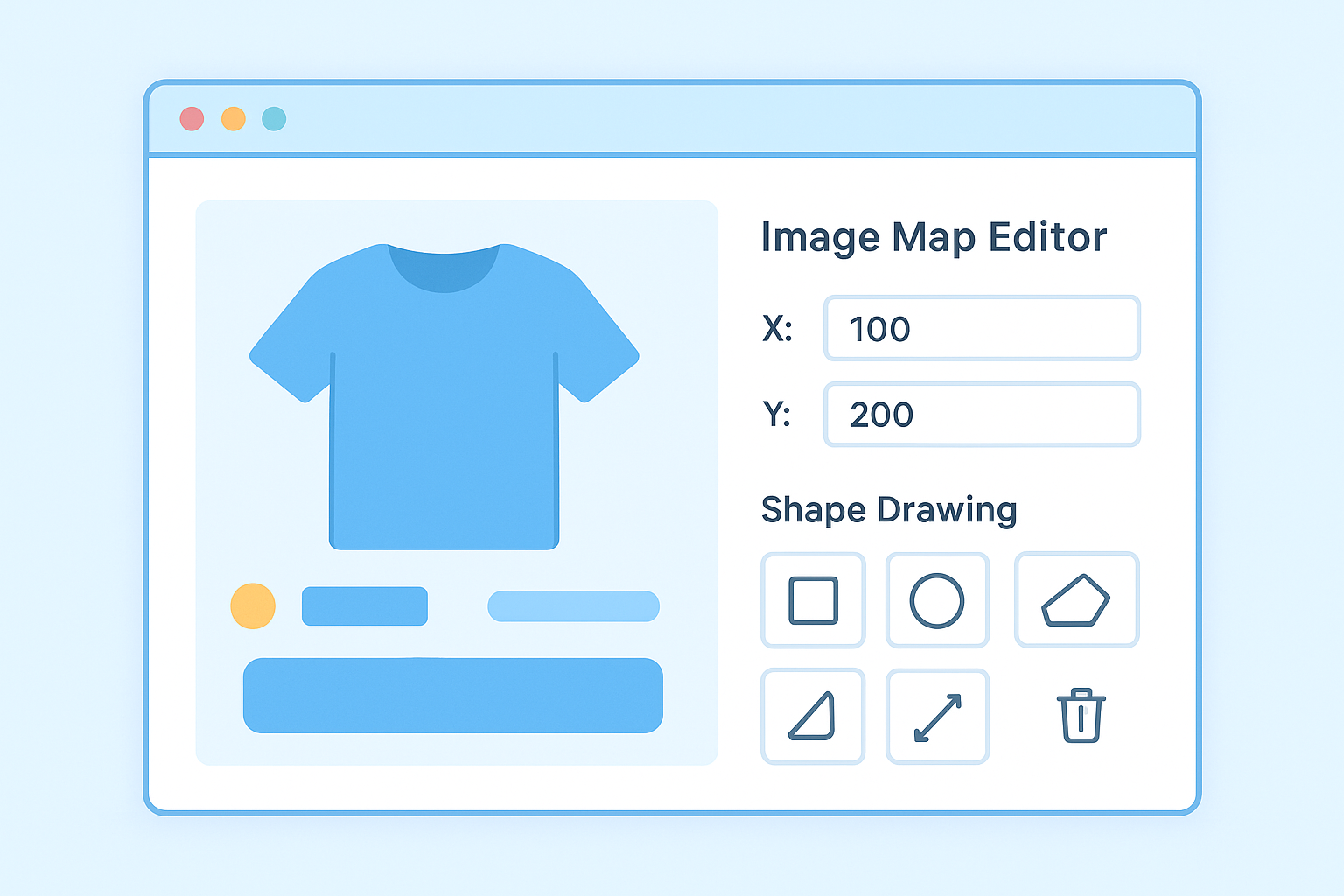
Online image-map editors allow you to draw hotspot regions visually and export clean HTML code without manual coordinate calculation.
SEO Considerations for Image-Maps
From an SEO perspective, image-maps carry several important considerations. Search engine crawlers can follow the href links within tags just as they do regular anchor links, meaning hotspot links pass link equity and are discoverable for indexing.
However, the image itself communicates very little to search engines without proper context. To maximize SEO value from your image-maps: For a deeper walkthrough, see our Grammar and Spelling and How It Effects Your SEO.
- Write descriptive
alttext for both the image and every area hotspot. - Use keyword-relevant anchor text in the
altattributes of yourtags. - Surround the image-map with descriptive text content that gives search engines context about what the image represents. For a deeper walkthrough, see our Google Search Console: Complete Beginner’s Guide 2025.
- Ensure all linked destination pages are indexable and return a 200 status code.
For deeper guidance on how interactive HTML elements affect search performance, RankAuthority provides expert resources covering technical SEO and on-page optimization strategies that apply directly to image-heavy content. For a deeper walkthrough, see our Google Analytics 4 for Beginners: How to step by step.
Frequently Asked Questions About Image-Maps
What are image-maps in HTML?
Image-maps are HTML elements that allow you to define clickable regions — called hotspots — on a single image, each linking to a different URL or triggering a specific action. They are created using the and tags combined with the usemap attribute on an
Are image-maps still supported in modern browsers?
Yes. Image-maps are fully supported in all modern browsers including Chrome, Firefox, Safari, and Edge. They are a valid HTML5 feature, though mobile responsiveness requires additional implementation effort.
What are the three shape types for image-map hotspots?
HTML image-maps support three hotspot shapes: rect (rectangle using left/top/right/bottom coordinates), circle (using center-x, center-y, and radius), and poly (polygon using a series of x,y vertex pairs).
How do you make image-maps responsive?
Native image-maps use fixed pixel coordinates and do not scale automatically. To make image-maps responsive, use a JavaScript rescaling library, replace the approach with CSS-positioned percentage-based overlays, or use SVG-based interactive graphics that scale natively with the viewport.
Conclusion: When and Why to Use Image-Maps
Image-maps remain a practical, native HTML solution for creating interactive visuals when your use case calls for multiple distinct clickable regions on a single image. From geographical maps and product diagrams to floor plans and infographic navigation, image-maps deliver a lightweight, semantically meaningful way to enrich user experience without relying on heavy JavaScript frameworks.
The keys to success are accurate coordinate definition, thorough accessibility implementation, a solid plan for responsive behavior, and descriptive alt text throughout. When these elements come together, image-maps can serve both users and search engines effectively.
For more technical SEO strategies that complement your use of interactive HTML elements like image-maps, visit RankAuthority.com — a comprehensive resource for search optimization best practices.